— CONFLUENCE APP
Drawpenapi for Confluence
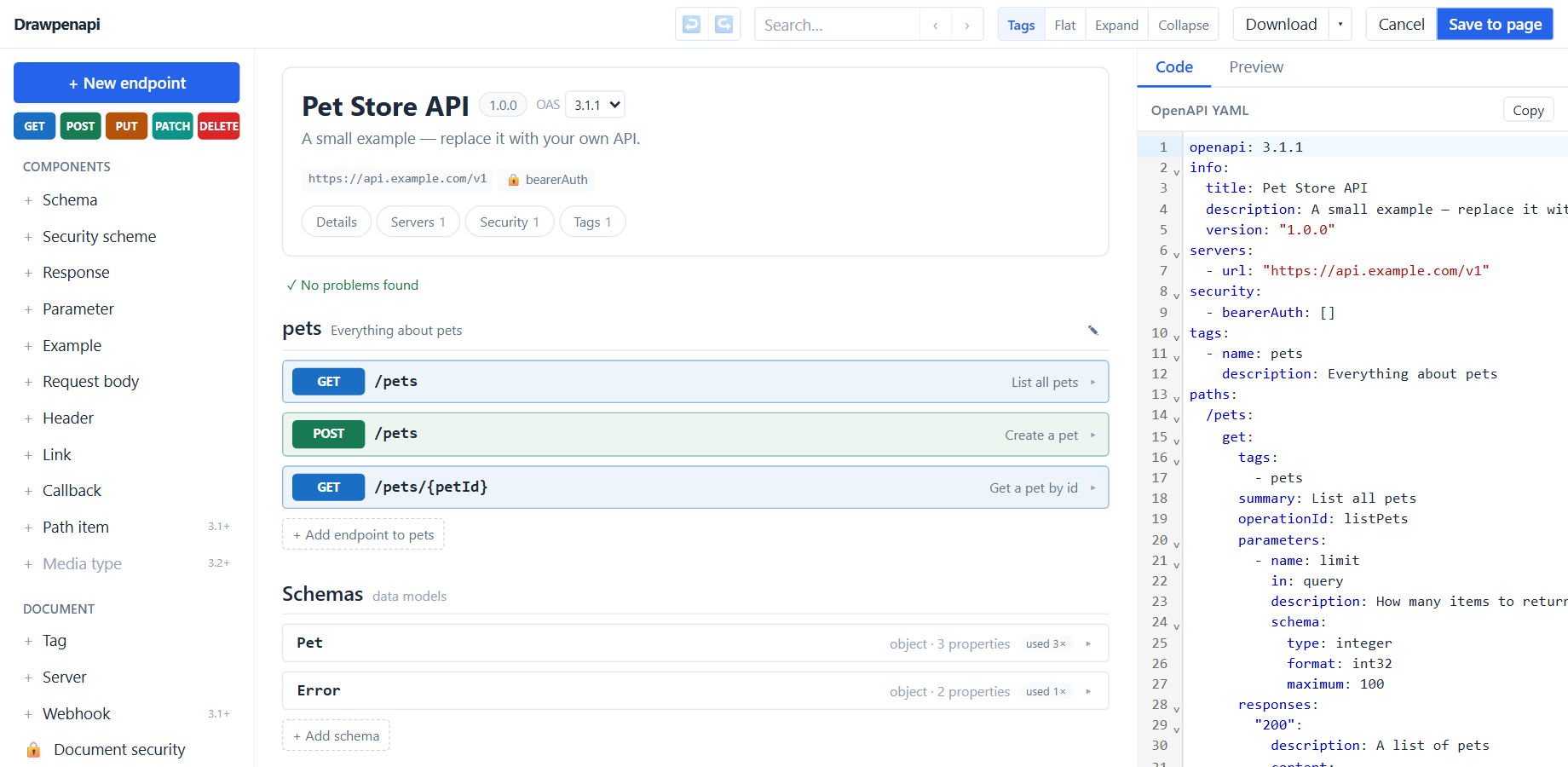
Design HTTP APIs on Confluence pages. A Swagger-style view of the API and its OpenAPI YAML sit side by side and stay in sync.
The short version
- Type /Drawpenapi on a page you are editing to add an API.
- Edit endpoints, schemas and the rest of the API by clicking, or edit the YAML: each side follows the other.
- Save to page stores the API inside the page. Readers see it as tag groups and operation rows.
- Nothing leaves Confluence: no server, no account, no tracking.
Install
Drawpenapi is a Confluence Cloud app. A site admin installs it from the Atlassian Marketplace: find Drawpenapi there, or in Confluence’s own list of apps, and choose to get the app. It does not work on Confluence Data Center.
It asks for no access to your Confluence content. It cannot read or change anything except the APIs you add with it.
Add an API
- Open a page and choose Edit.
- Type /Drawpenapi and choose Drawpenapi from the list, or insert it from the editor’s insert menu.
- The editor opens full-size, with a small example API to start from.
- Edit the API (see Working in the editor).
- Choose Save to page. The editor closes and the API appears in the page.
- Publish or update the page.
Edit it later
Edit the page, select the API, and open it from its toolbar. The editor opens full-size on the API as it was saved.
- Save to page saves and closes the editor.
- Ctrl+S (Cmd+S on a Mac) saves and keeps the editor open.
- Cancel closes without saving. If you changed something since the last save, it asks first.
Remember to update the page afterwards, as with any other change to it.
Working in the editor
The API is on one side and its OpenAPI YAML on the other. Change either one and the other follows.
- Add an endpoint with New endpoint or one of the method buttons. Open an operation row to edit its method, path, summary, tags, parameters, request body and responses.
- Add schemas, security schemes, responses, parameters, examples and the other component types from the side panel, and tags, servers and webhooks under Document.
- Group operations by tag or show them as a flat list, and expand or collapse them all from the toolbar. A problems list points at anything the document gets wrong.
- Or edit the YAML in the code panel. The view follows a moment after you stop typing. If the YAML has an error, the view stays as it was and a message says what is wrong.
- To bring in an existing API, paste an OpenAPI 3.0, 3.1 or 3.2 document into the code panel. Every object and field of those versions can be edited, and nothing the document says is lost: vendor extensions (
x-…) and fields Drawpenapi does not know are kept as written.
Undo and redo, search, and the Download menu work as in the web editor. The editor follows Confluence’s light or dark theme.
What readers see
Readers see the API as tag groups and operation rows, with each operation’s parameters and responses. Under it, Download .yaml saves the OpenAPI file, named after the API’s title, and SVG saves the picture.
The picture follows Confluence’s light or dark theme.
Where it is stored
The API is stored inside the page, as part of the Drawpenapi element you added. So it behaves like the rest of the page:
- Page history keeps every saved version. Restoring an older version of the page restores the API too.
- Page restrictions decide who can see and edit it.
- Copying the page copies the API. The copy is independent of the original.
Drawpenapi has no server. It sends nothing anywhere, uses no cookies and no analytics, and needs no account. The privacy policy and the terms of service cover the Confluence apps.
Compared with the web editor
The Confluence editor is the same editor as Drawpenapi on the web, with the parts that belong to a browser tab taken out:
- No list of documents and no opening files: each Drawpenapi element on a page holds one API.
- No version history of its own: page history is the history.
- No saving to your disk and no share links. Use the page, or the download buttons.
- No theme switch: it follows Confluence.
Known limits
- If two people edit the same API at the same time, the last one to save wins.
- Swagger 2.0 documents, and anything that is not an OpenAPI 3.x document, are refused.
- Exporting the page to Word does not include the API. Download the SVG to use it elsewhere.
Help
Email contact@drawdiags.com.
Name the app, your site address (yoursite.atlassian.net) and what you see. Don’t
send page content you are not allowed to share. The contact page has
more on what to include.
Guides for the other Confluence apps: Drawtabase, Drawmaid, Drawlize, Drawuml.