— CONFLUENCE APP
Drawuml for Confluence
Draw UML diagrams on Confluence pages. The diagram and its PlantUML code sit side by side and stay in sync, and no PlantUML server is involved.
The short version
- Type /Drawuml on a page you are editing and pick one of eight UML diagram types.
- Draw on the canvas or write PlantUML: each side follows the other.
- Save to page stores the diagram inside the page. Readers see it as a picture.
- Nothing leaves Confluence: no PlantUML server, no account, no tracking.
Install
Drawuml is a Confluence Cloud app. A site admin installs it from the Atlassian Marketplace: find Drawuml there, or in Confluence’s own list of apps, and choose to get the app. It does not work on Confluence Data Center.
It asks for no access to your Confluence content. It cannot read or change anything except the diagrams you add with it.
Add a diagram
- Open a page and choose Edit.
- Type /Drawuml and choose Drawuml from the list, or insert it from the editor’s insert menu.
- The editor opens full-size. Pick a diagram type: class, object, use case, component, deployment or state diagram, or a sequence or activity diagram (both Beta). The diagram starts from a small example of that type. Cancel here leaves without adding anything.
- Edit the diagram (see Working in the editor).
- Choose Save to page. The editor closes and the diagram appears in the page.
- Publish or update the page.
Edit it later
Edit the page, select the diagram, and open it from its toolbar. The editor opens full-size on the diagram as it was saved.
- Save to page saves and closes the editor.
- Ctrl+S (Cmd+S on a Mac) saves and keeps the editor open.
- Cancel closes without saving. If you changed something since the last save, it asks first.
Remember to update the page afterwards, as with any other change to it.
Working in the editor
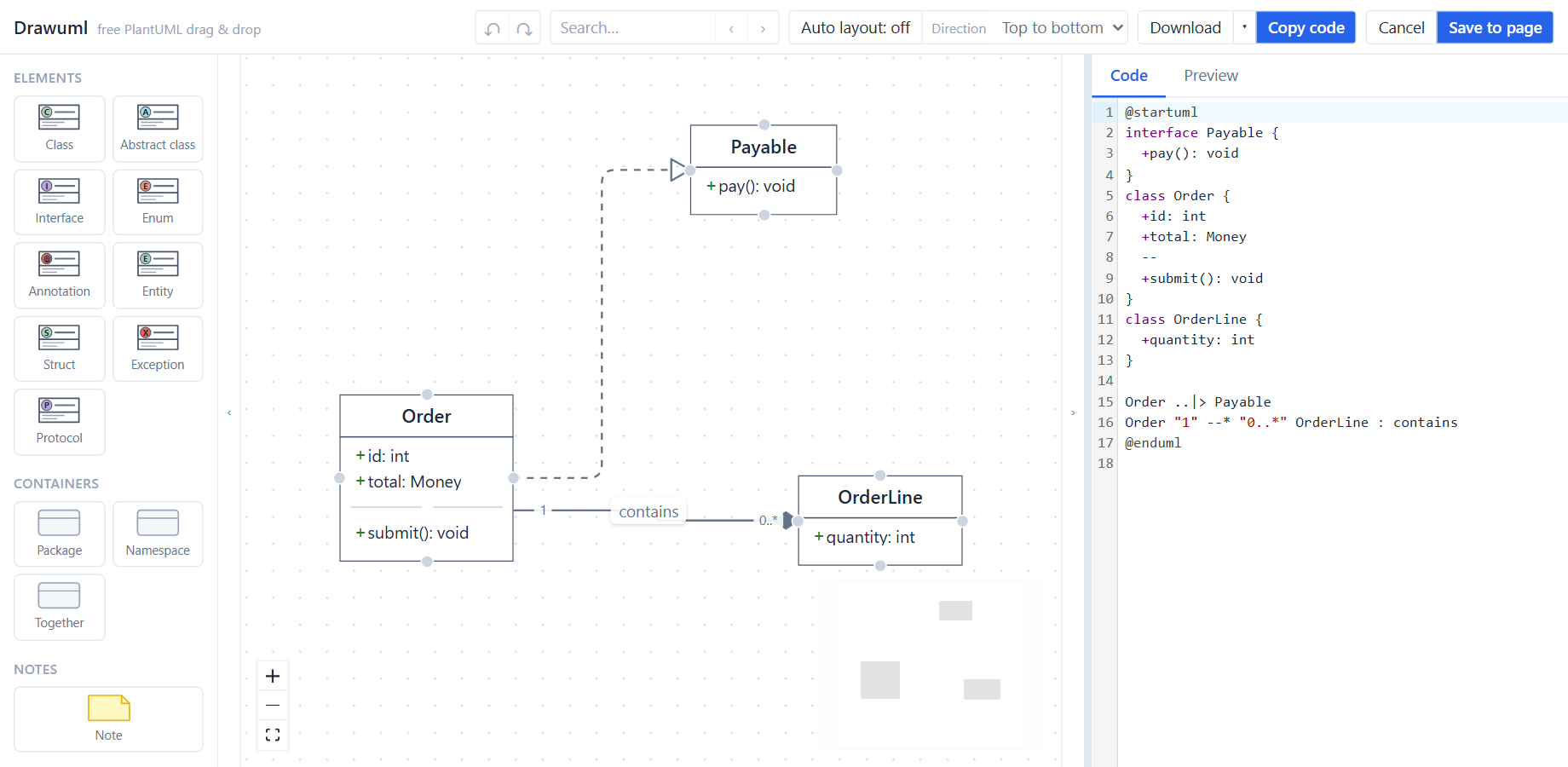
The diagram is on one side and its PlantUML code on the other. Change either one and the other follows.
- In class, object, use case, component, deployment and state diagrams, drag elements from the palette onto the canvas, connect them, and place them where you like, or turn on auto layout and pick a direction.
- Sequence and activity diagrams are arranged for you: you edit what they contain and the layout follows.
- Or edit the PlantUML code in the code panel. The diagram follows a moment after you stop typing. If the code has an error, the diagram stays as it was and a message says what is wrong.
- To bring in an existing diagram, paste the contents of a
.pumlfile into the code panel. It must be the same diagram type as the one you picked. Lines Drawuml cannot edit, such asskinparamor!theme, are kept as written, with a warning.
Undo and redo, search, and the Download menu work as in the web editor. The editor follows Confluence’s light or dark theme.
What readers see
Readers see the diagram as a picture. Under it, Download .puml saves the PlantUML code and SVG saves the picture.
The picture follows Confluence’s light or dark theme.
Where it is stored
The diagram is stored inside the page, as part of the Drawuml element you added. So it behaves like the rest of the page:
- Page history keeps every saved version. Restoring an older version of the page restores the diagram too.
- Page restrictions decide who can see and edit it.
- Copying the page copies the diagram. The copy is independent of the original.
Drawuml has no server. It sends nothing anywhere, uses no cookies and no analytics, and needs no account. The privacy policy and the terms of service cover the Confluence apps.
Compared with the web editor
The Confluence editor is the same editor as Drawuml on the web, with the parts that belong to a browser tab taken out:
- No list of documents and no opening files: each Drawuml element on a page holds one diagram.
- No version history of its own: page history is the history.
- No saving to your disk and no share links. Use the page, or the download buttons.
- No theme switch: it follows Confluence.
Known limits
- If two people edit the same diagram at the same time, the last one to save wins.
- A diagram’s type is fixed once you pick it. To change it, delete the diagram and insert a new one.
- PlantUML diagram types other than the eight above (Gantt, mindmap, JSON and so on) are refused.
- Drawuml draws the diagram itself, so it can look different from PlantUML’s own rendering of the same code.
- Downloaded files are named after the diagram’s name, which cannot be changed in Confluence once the diagram exists.
- Exporting the page to Word does not include the diagram. Download the SVG to use it elsewhere.
Help
Email contact@drawdiags.com.
Name the app, your site address (yoursite.atlassian.net) and what you see. Don’t
send page content you are not allowed to share. The contact page has
more on what to include.
Guides for the other Confluence apps: Drawtabase, Drawpenapi, Drawmaid, Drawlize.